Two-Factor Authentication (2FA)
Two-Factor Authentication adds a second verification step on top of your password. Even if someone gets hold of your password, they still can't access your account without your second factor.
SATLAS uses TOTP (Time-based One-Time Password) — the same standard used by Google Authenticator, Authy, and other authenticator apps.
Why Enable 2FA?
SATLAS accounts have access to sensitive red team engagement data. Enabling 2FA is strongly recommended — and may be required by your organization's security policy.
What You Need
Any TOTP-compatible authenticator app:
| App | Platform |
|---|---|
| Google Authenticator | iOS, Android |
| Authy | iOS, Android, Desktop |
| Microsoft Authenticator | iOS, Android |
| 1Password | iOS, Android, Desktop (built-in TOTP) |
| Bitwarden | iOS, Android, Desktop (built-in TOTP) |
Setting Up 2FA
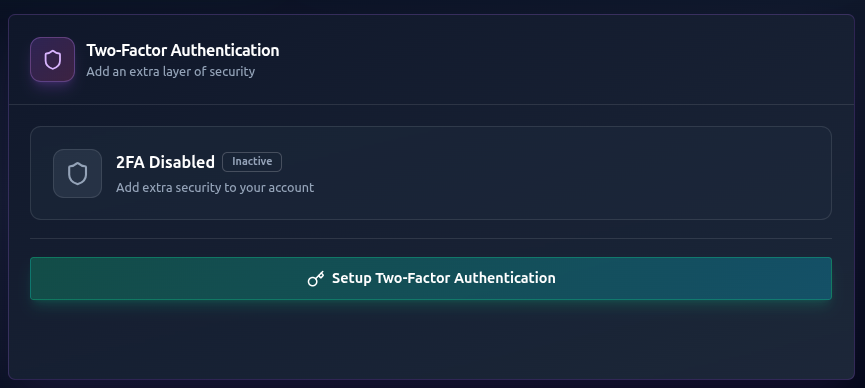
- Go to your Prfile (click your profile icon)
- Find the Two-Factor Authentication section and click Enable Two-Factor Authentication
- Open your authenticator app and scan the QR code displayed on screen
- Enter the 6-digit code shown in your authenticator app to confirm the setup
- Click Verify & Enable
2FA is now active on your account. From your next login, you'll be asked for your 6-digit code after entering your password.
After enabling 2FA, RTF generates 10 backup codes. Save these somewhere safe (a password manager, printed and locked away, etc.). If you lose access to your authenticator app, backup codes are the only way to get back in.
Logging In with 2FA
When 2FA is enabled:
- Enter your email and password as normal
- You'll be taken to a second screen asking for your authentication code
- Open your authenticator app and enter the current 6-digit code
- Click Verify
The code changes every 30 seconds — use the code currently shown in your app. A ±60 second grace window is applied, so you don't have to rush.
Using Backup Codes
If you've lost access to your authenticator app:
- On the 2FA screen, click Use a backup code instead
- Enter one of your 10 backup codes
- Each backup code can only be used once
After using a backup code, we strongly recommend:
- Logging in
- Disabling 2FA (Settings → Security → Disable 2FA)
- Re-enabling 2FA with your new device to get a fresh QR code
Regenerating Backup Codes
If you've used most of your backup codes or suspect they've been compromised:
- Go to Account Settings → Security
- Click Regenerate Backup Codes
- Your old backup codes are immediately invalidated
- Save the new codes securely
Disabling 2FA
Disabling 2FA reduces your account security. Only do this if you're migrating to a new authenticator app.
- Go to Account Settings → Security
- Click Disable Two-Factor Authentication
- Enter your current authenticator code to confirm
Troubleshooting
Code says "invalid" even though it looks right
- Make sure your phone's time is set to automatic/network time — TOTP codes are time-based and will fail if your device clock is off
- Try the next code (wait for the 30-second rotation)
Lost access to authenticator app and have no backup codes
- Contact your organization admin — they can reset your 2FA from the admin panel
Next Steps
- Password Management → — update or reset your password
- Your Profile → — manage your account details