C2 Infrastructure Mapping
The C2 Infrastructure section lets you map out your command-and-control setup during an engagement. You can visually track your beacons, relay nodes, redirectors, and their relationships in a hierarchical tree.
What Is C2 Infrastructure Mapping?
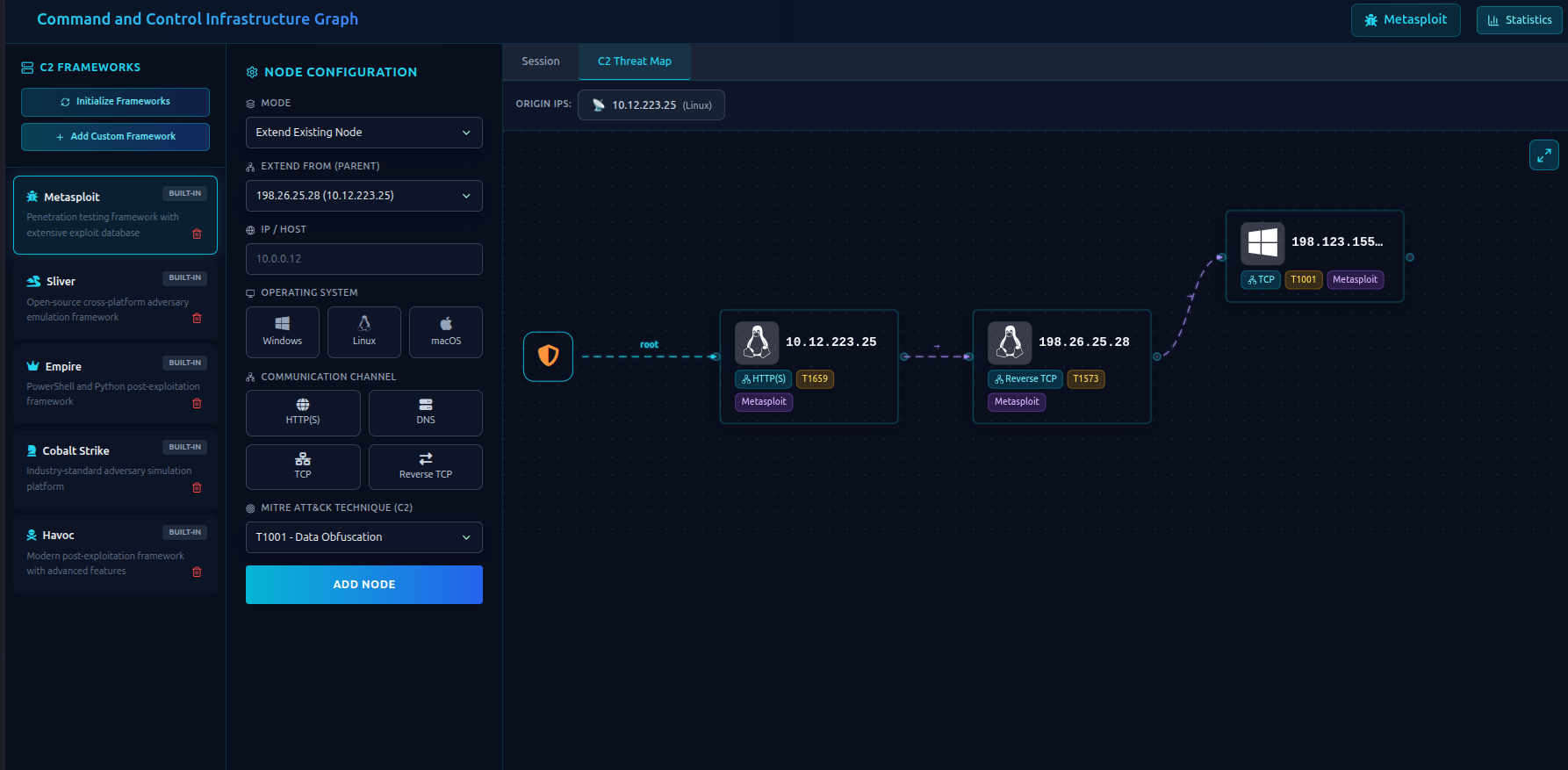
During a red team engagement, you deploy infrastructure to control compromised machines:
- Listeners / Team servers — your origin C2 nodes
- Redirectors — intermediate nodes that forward traffic
- Beacons / Implants — the compromised machines calling back
RTF lets you document all of this in a structured, visual way — so your team always knows what's deployed and where.
C2 Frameworks
RTF comes pre-configured with the most common C2 frameworks:
| Framework | Type |
|---|---|
| Cobalt Strike | Commercial |
| Havoc | Open source |
| Sliver | Open source |
| Empire | Open source |
| Metasploit | Open source |
You can also add custom frameworks for any other C2 tool you use.
Adding a C2 Framework
Before adding nodes, you need to define which framework you're using:
-
Go to C2 Infrastructure → Frameworks
-
Click Add Framework
-
Fill in:
Field Description Name Framework name (e.g., "Cobalt Strike") Description Optional notes Communication Channels e.g., HTTPS, DNS, SMB Beacon Name What you call your implants (e.g., "Beacon", "Agent", "Session") -
Click Save
Adding Nodes (Beacons / Redirectors)
A node represents any machine in your C2 chain — whether it's a redirector, a listener, or a compromised host.
To add a node:
-
Go to C2 Infrastructure → Nodes
-
Click Add Node
-
Fill in the details:
Field Required Description IP Address Yes The node's IP OS Yes Windows, Linux, macOS, or Unknown Channel Yes Communication channel (HTTPS, DNS, etc.) TTP Yes The MITRE technique this node relates to Framework Yes Which C2 framework this node belongs to Is Origin — Toggle on if this is a team server / listener Parent IP No The node this one connects to (for redirectors and beacons) Description No Additional notes Tags No Labels like "redirector", "beacon", "pivot" -
Click Save
Understanding the Node Hierarchy
Nodes are organized in a tree structure:
Origin Node (Team Server)
└─ Redirector
    ├─ Beacon (Compromised Host A)
    └─ Beacon (Compromised Host B)
        └─ Pivot Node (deeper in network)
- Depth 0 — Origin (your team server / listener)
- Depth 1 — Nodes connected directly to origin (redirectors, direct beacons)
- Depth 2+ — Deeper nodes (pivots, beacons through redirectors)
Viewing the Infrastructure Tree
Click Infrastructure Tree to see your full C2 setup visualized as an interactive tree diagram. You can:
- See which machines are active in your chain
- Track communication paths
- Identify pivot points
Infrastructure Statistics
The Statistics view shows:
- Total frameworks deployed
- Total number of nodes
- Number of origin nodes (team servers)
- Breakdown by framework
Organizing by Engagement
C2 nodes are tied to your engagement (profile) and optionally to a subprofile. This means:
- Each engagement has its own isolated C2 map
- You can filter nodes by subprofile if you have segmented targets
Tips
- Add nodes as you deploy them — don't try to reconstruct the map at the end
- Use Tags to label node roles (redirector, beacon, pivot, exfil)
- Set Is Origin only on your actual team servers — this keeps the tree structure clean
- Document the channel accurately — it helps in reporting (e.g., "HTTPS beacons over port 443 through AWS redirector")
Next Steps
- Analytics Dashboard → — C2 infrastructure stats appear in the dashboard
- Findings → — link findings to the techniques used through your C2