Logging In
RTF uses a secure, cloud-hosted authentication system to protect your account and your organization's data. Every user must log in before accessing any part of the platform.
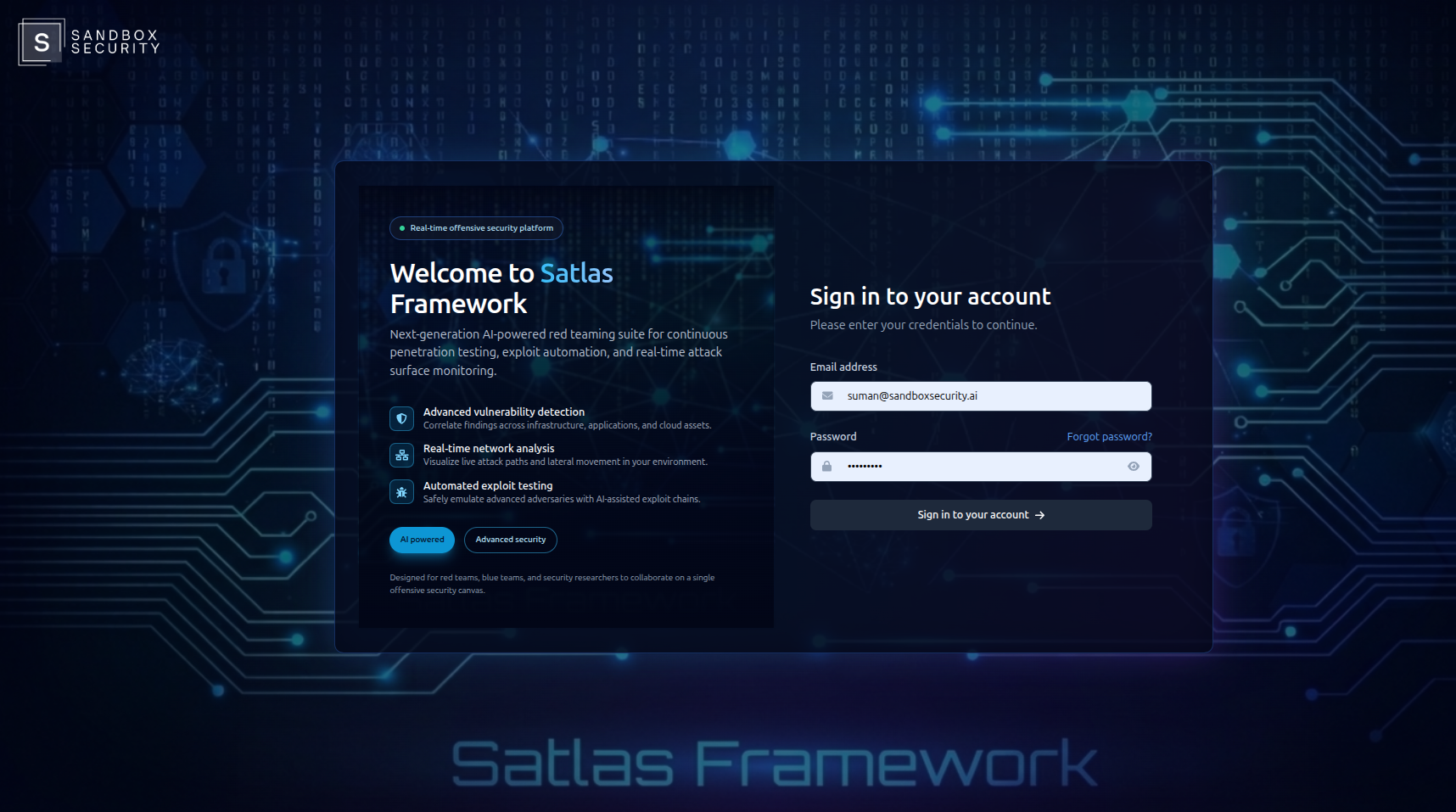
How to Log In
- Open RTF in your browser at your organization's login URL
- Enter your email address and password
- Click Sign In
If your account has Two-Factor Authentication (2FA) enabled, you will be asked to enter your one-time code after the password step. See Two-Factor Authentication →.
Receiving Your Credentials
You do not self-register on RTF. Accounts are created and managed by your organization's admin.
| Scenario | What to expect |
|---|---|
| New team member | Your admin creates your account — you receive a welcome email with your login credentials and a link to verify your email |
| Password forgotten | Use the Forgot Password link on the login page — a reset link is sent to your registered email |
| First login | You may be required to verify your email address before access is granted |
If you haven't received your welcome email, check your spam folder. If it's still missing, ask your organization admin to resend the invite.
Email Verification
When your account is first created, RTF sends a verification email to confirm your address. Click the link in that email to activate your account.
Without email verification, you won't be able to sign in. The verification link expires after a set period — if it expires, your admin can resend it.
Account Lockout
To protect against brute-force attacks, RTF automatically locks an account after 5 consecutive failed login attempts.
- The lockout lasts 30 minutes
- After 30 minutes, you can try again
- Contact your admin if you need the lockout cleared sooner
Logging Out
To log out:
- Click your profile icon or name in the top bar
- Click Sign Out
Your session is immediately terminated. For security, always log out when using a shared machine.
Session Tokens
RTF uses short-lived access tokens for security. Sessions are maintained automatically in the background via secure token refresh — you won't be prompted to log in repeatedly during normal use.
If you're inactive for an extended period, you may be asked to re-authenticate.
Next Steps
- Two-Factor Authentication → — add a second layer of protection to your account
- Password Management → — change your password or reset a forgotten one