MITRE ATT&CK Navigator
The ATT&CK Navigator is your visual map for tracking which attack techniques you've tested during an engagement. It's organized by the official ATT&CK framework — 14 tactics, hundreds of techniques, and sub-techniques.
Every profile you create gets its own ATT&CK Navigator, pre-loaded with the full technique library.
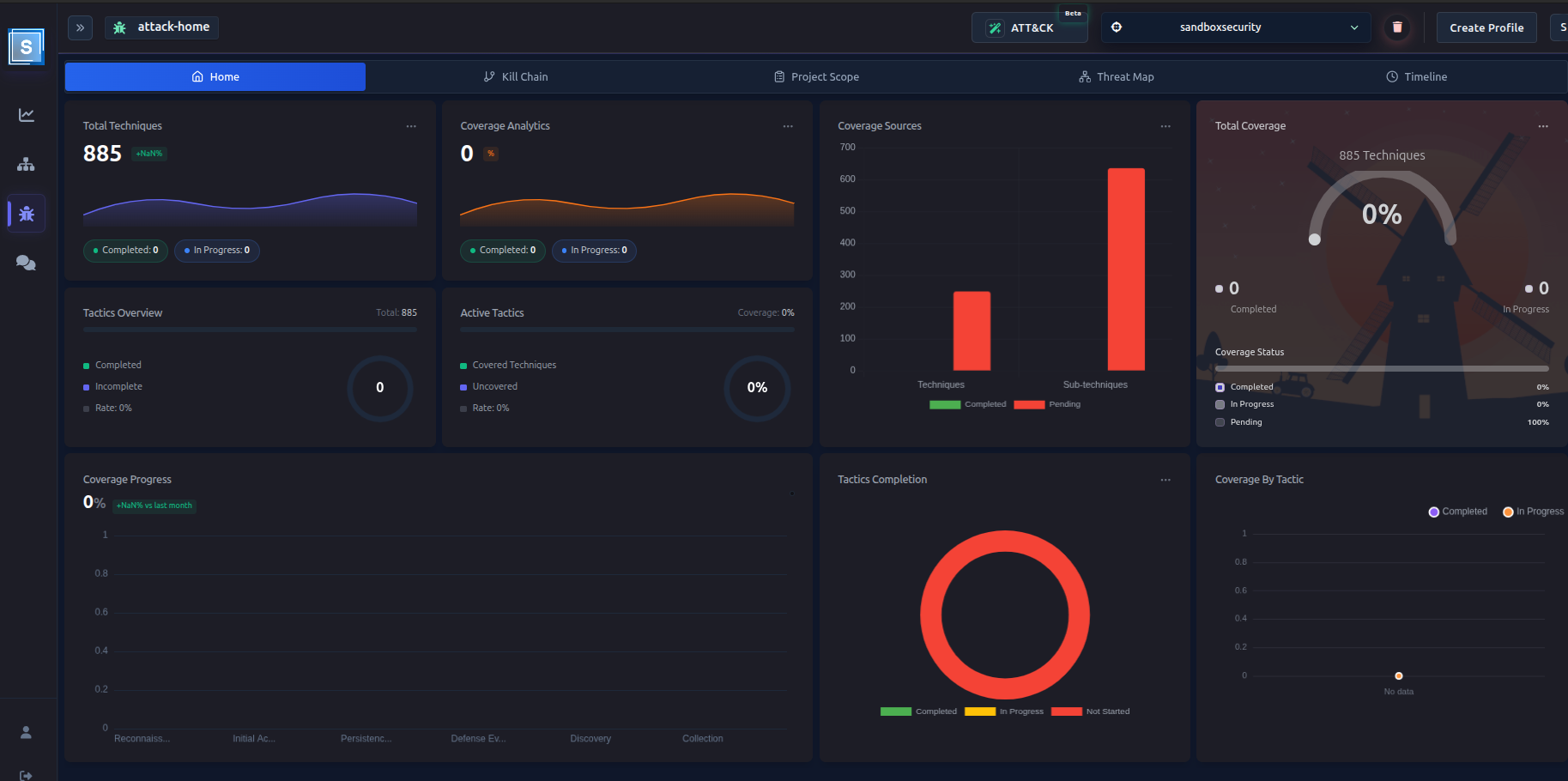
Understanding the Layout
The navigator is organized into Tactics (columns) and Techniques (rows within each tactic):
Reconnaissance → Resource Development → Initial Access → Execution → ...
    │                   │                    │               │
    ├─ Active Scanning   ├─ Acquire Infra     ├─ Phishing     ├─ Command Scripts
    │   └─ IP Blocks     │   └─ Domains       │   └─ Spear    │
    ├─ Gather Info       ├─ Compromise Infra  ├─ Valid Accts  └─ ...
    └─ ...               └─ ...               └─ ...
Each technique card shows:
- Technique name and ID (e.g., T1595)
- Status — in progress, completed, or not started
- Scope indicator — whether this technique is in scope
- Priority level
Technique Statuses
| Status | Meaning |
|---|---|
| Not Started | Technique hasn't been tested yet |
| In Progress | You've started working on this technique |
| Completed | Testing for this technique is done |
You don't have to manually update the navigator for every finding. When you create a Finding and mark it as completed, the related technique is automatically marked as completed in the navigator. See Findings →.
Marking Techniques In Scope
Techniques marked as In Scope are the ones relevant to your engagement. Only in-scope techniques are included in AI attack plan generation.
To mark techniques in scope manually:
- Click on a technique card
- Toggle In Scope on
Or, use AI Scope Suggestions to let AI do this for you based on your target description. See AI Scope Suggestions →.
Updating Technique Status
Via Findings
When you create a finding and link it to a technique, the navigator updates automatically:
- Finding status = In Progress → technique = In Progress
- Finding status = Completed → technique = Completed
This is the preferred approach because it keeps your findings and navigator in sync.
The Timeline View
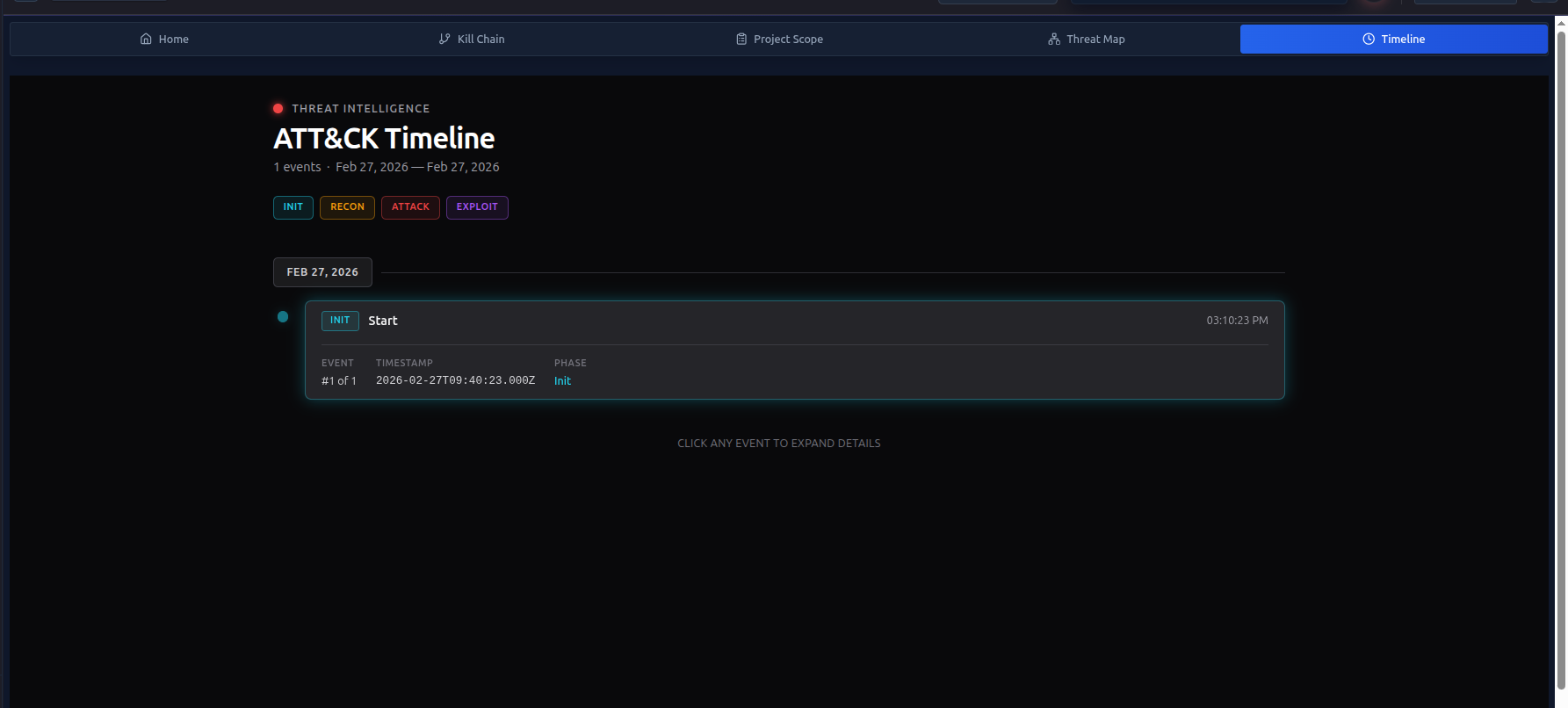
The navigator includes a Timeline panel that shows:
- Start — when the engagement began
- Each completed finding, in chronological order
This gives you a visual history of the engagement's progression.
Top Tactics Coverage
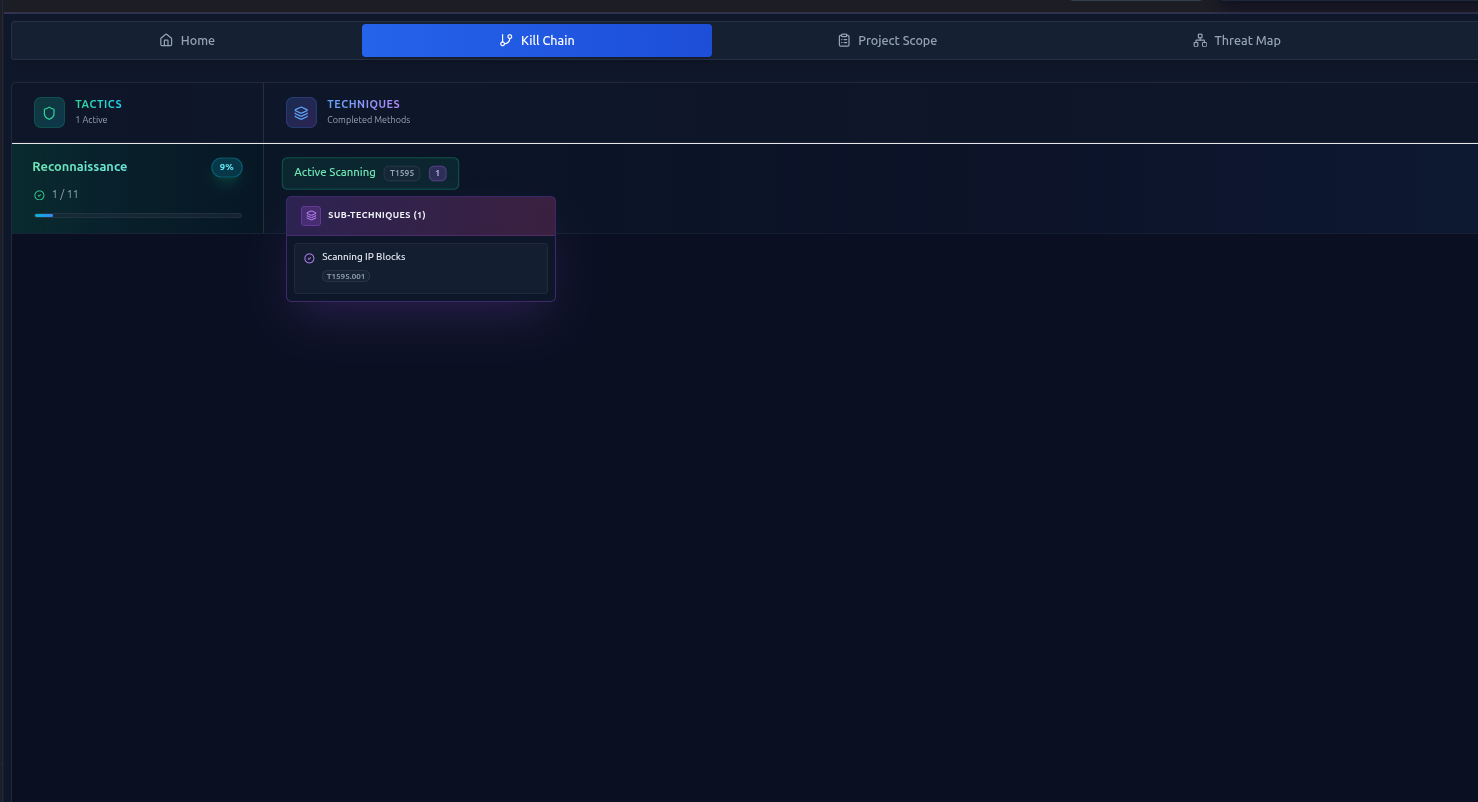
At the top of the navigator, you'll see a Top Tactics Coverage panel showing:
- Which tactics have the most completed techniques
- The most recently completed items in each tactic
This helps you quickly see where you've been most active and where gaps remain.
Cascade Logic — How Status Propagates
RTF uses a smart cascade system so you don't have to update multiple levels manually:
- When a sub-technique is completed → the parent technique is marked completed
- When a technique is completed → the tactic is marked completed (if all techniques done)
- When you delete a completed finding → the status reverts only if no other completed findings exist for that path
This prevents accidental status resets when you have multiple findings per technique.
Searching and Filtering
Use the search bar at the top of the navigator to:
- Search by technique name or ID (e.g., "T1059" or "PowerShell")
- Filter by status (show only in-progress, only completed, etc.)
- Filter by scope (show only in-scope techniques)
Exporting Navigator Data
You can export your current navigator state for reporting or sharing. The export includes technique names, statuses, and scope settings in a structured format.
Next Steps
- MITRE ATLAS Navigator → — same concept, for AI/ML assessments
- AI Scope Suggestions → — let AI mark your in-scope techniques
- Findings → — record findings that auto-update the navigator