Managing Profiles
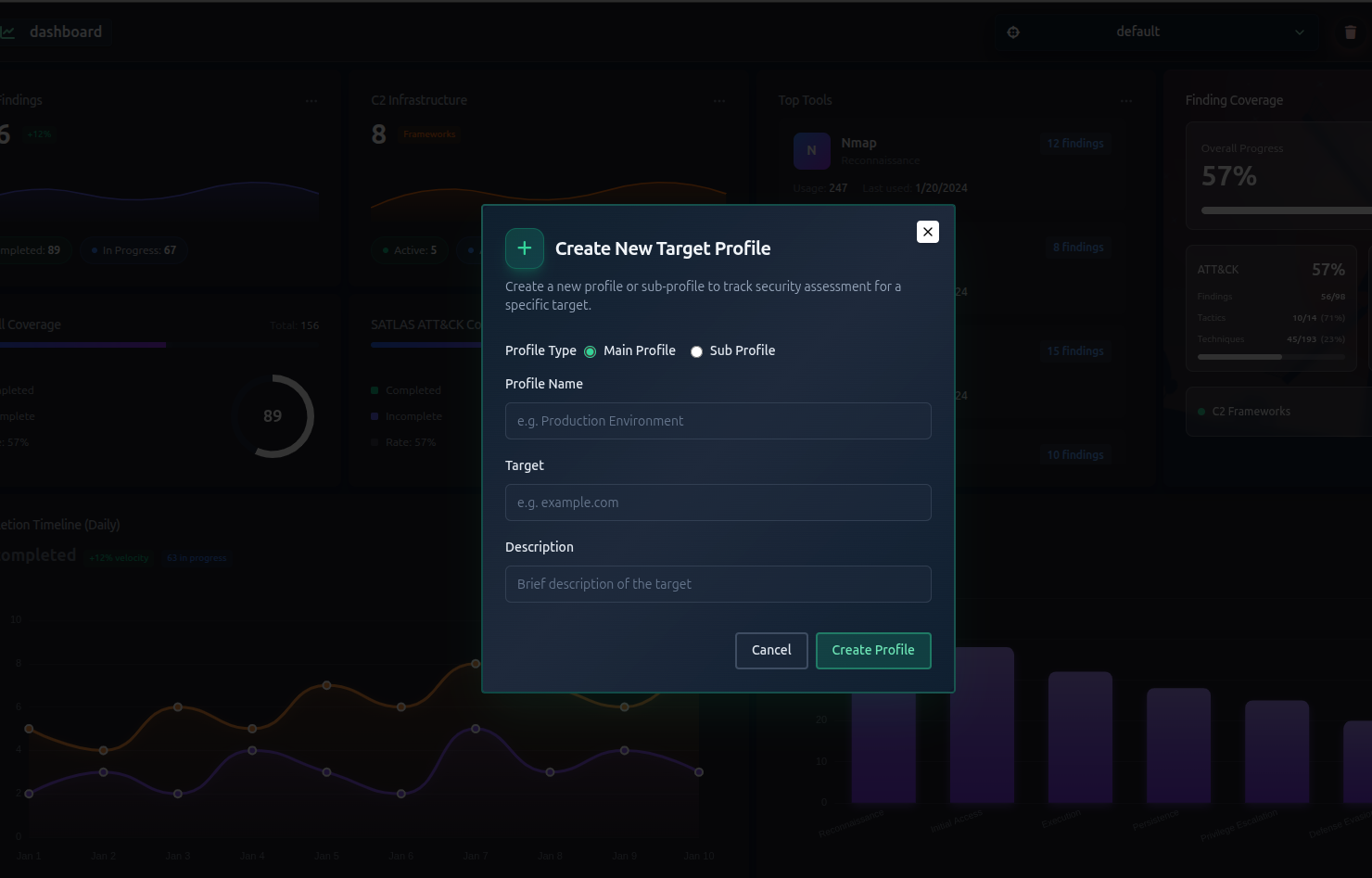
A Profile is your engagement. It's the top-level container that holds everything related to one assessment — the navigator, findings, AI plans, terminal sessions, and more.
Creating a Profile
-
From the main screen, click New Engagement (or the + icon)
-
Fill in the following fields:
Field Required Description Name Yes Unique identifier for the engagement (no spaces recommended) Target Yes Short description of what you're testing Description No Additional context, scope notes, or objectives -
Click Create Engagement
When you create a profile, RTF automatically creates:
- A ATT&CK Navigator loaded with all current ATT&CK techniques
- A ATLAS Navigator loaded with all current ATLAS techniques
You don't need to set these up separately.
Viewing Your Engagements
All your active engagements are listed on the main screen. Each card shows:
- The engagement name and target
- Date created
- Quick-access links to the navigator and findings
Switching Between Engagements
Click on any engagement card to open it. The left sidebar will update to show all the features for that engagement.
To switch to a different engagement, click the engagement name in the top bar or return to the main screen.
Naming Best Practices
Use a naming convention that makes engagements easy to identify at a glance:
| Example | When to use |
|---|---|
acme-corp-2026 | Standard client engagement |
acme-external-q1 | Multiple engagements per client |
internal-ad-audit | Internal assessments |
acme-ai-review | ATLAS / AI security assessments |
Profile names must be unique. If you try to create a profile with a name that already exists, you'll get an error. Choose a descriptive, specific name from the start.
Deleting a Profile
Deleting a profile permanently removes the profile and all associated data including:
- Navigator data
- All findings
- All AI-generated plans
- Terminal session history
This cannot be undone.
To delete a profile:
- Open the engagement
- Go to Settings or the profile options menu
- Click Delete Engagement
- Confirm the deletion
What Lives Inside a Profile
| Feature | Description |
|---|---|
| ATT&CK Navigator | Visual technique tracking map |
| ATLAS Navigator | Same for AI/ML security |
| AI Scope Suggestions | AI-recommended scope |
| AI Attack Plan | AI-generated engagement plan |
| AI Tool Suggestions | Tool recommendations per technique |
| Findings | Documented discoveries |
| C2 Infrastructure | Command & control mapping |
| Terminal Sessions | Active browser-based shells |
| Analytics Dashboard | Engagement metrics |
| Subprofiles | Sub-segments of the engagement |
Next Step
Once you have a profile, organize it further with Subprofiles → or jump straight to defining your scope →.