Team Chat
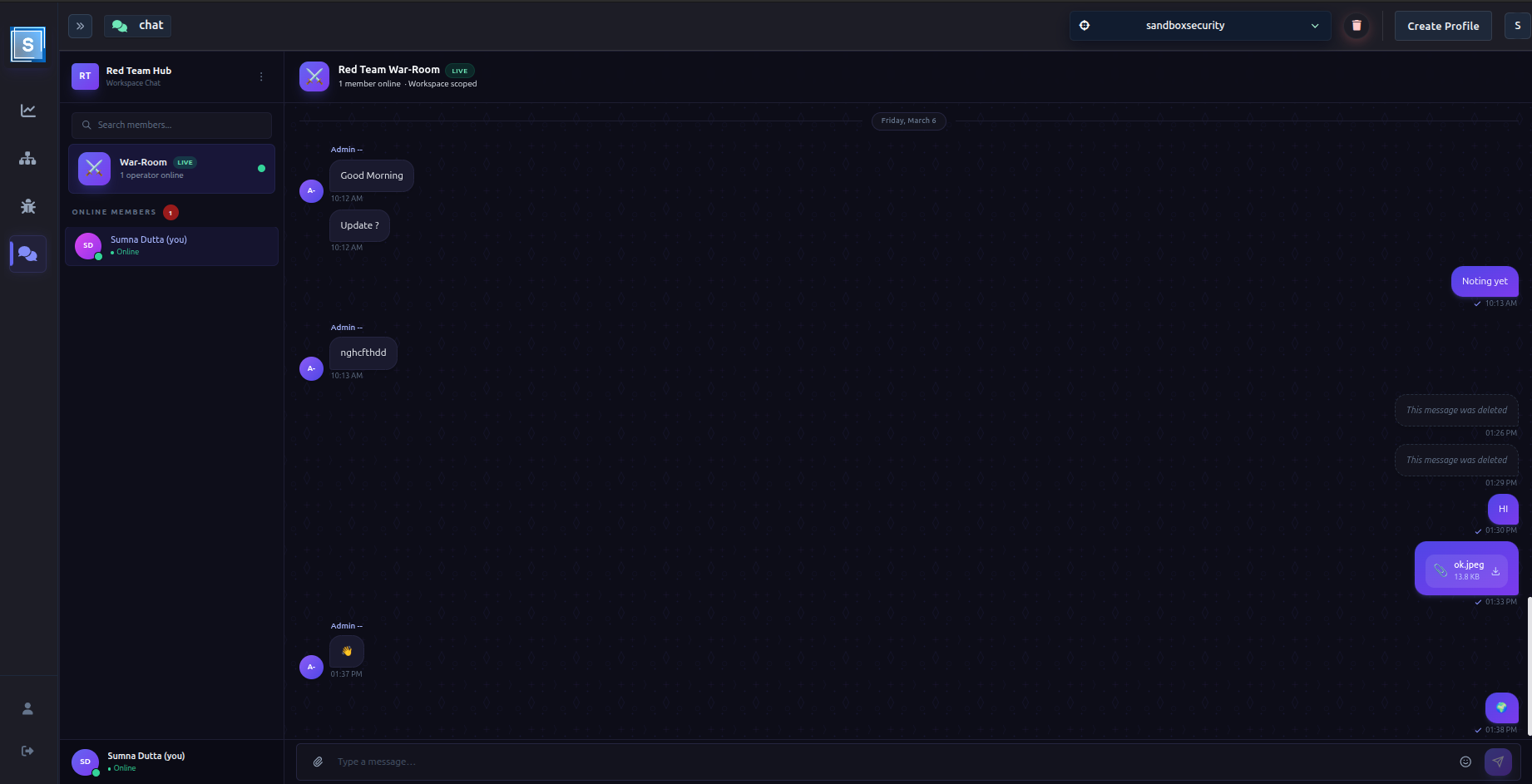
SATLAS includes a built-in real-time team chat so your red team can communicate without switching to an external tool. All messages stay within the SATLAS platform, isolated to your organization.
What Is Team Chat?
Every organization in SATLAS has a dedicated group chat room. It's a single shared channel for your entire team — think of it as your secure ops channel for the engagement.
Key characteristics:
- Organization-isolated — your messages are only visible to members of your organization
- End-to-end encrypted — messages are encrypted at rest; only your organization can read them
- Persistent — message history is saved, so you can scroll back and catch up
- Real-time — messages appear instantly for all online members
Accessing Team Chat
Look for the Chat icon in the navigation bar. The chat panel opens as a sidebar or full panel depending on your screen size.
A badge on the icon shows your unread message count so you never miss something while you're working in a different part of the platform.
Sending Messages
- Click in the message box at the bottom of the chat panel
- Type your message
- Press Enter to send
You can see a typing indicator when another team member is composing a message.
Sharing Files
You can share files and screenshots directly in chat — useful for quickly showing a finding, a terminal output, or a screenshot to a teammate without creating a formal finding.
To share a file:
- Click the attachment icon (paperclip) in the message bar
- Select a file from your machine (up to 25 MB)
- The file uploads and appears inline in the chat
Supported file types: images, PDFs, text files, archives, and more.
Files download links are time-limited for security — if a link expires, you can regenerate it from the message.
Deleting Messages
You can delete your own messages at any time:
- Hover over the message
- Click the delete icon
- The message is replaced with a "deleted" placeholder
Admins can delete any message in the chat.
Online Presence
Next to each team member's name, you'll see an online indicator:
| Indicator | Meaning |
|---|---|
| Green dot | Currently active in SATLAS |
| Grey / no dot | Offline or inactive |
The online list updates in real time. This is useful for knowing who's available to discuss something during an active engagement.
Chat vs. Findings Notes
Team Chat and Findings serve different purposes:
| Use | Where |
|---|---|
| Quick message to a teammate | Team Chat |
| Share a screenshot for quick feedback | Team Chat |
| Formal evidence tied to a MITRE technique | Finding (with screenshot attachment) |
| Notes about a specific TTP | TTP Markdown notes in the Navigator |
| Engagement documentation | Findings + Analytics Dashboard |
Next Steps
- Roles & Permissions → — understand who can do what
- Managing Team Members → — how admins add users (admin only)
- Findings → — formal evidence documentation