Managing Team Members
This section is for users with the Admin role. Members cannot access user management features.
Team management in SATLAS is handled through your organization's admin panel. Admins control who has access to the platform and what role they're assigned.
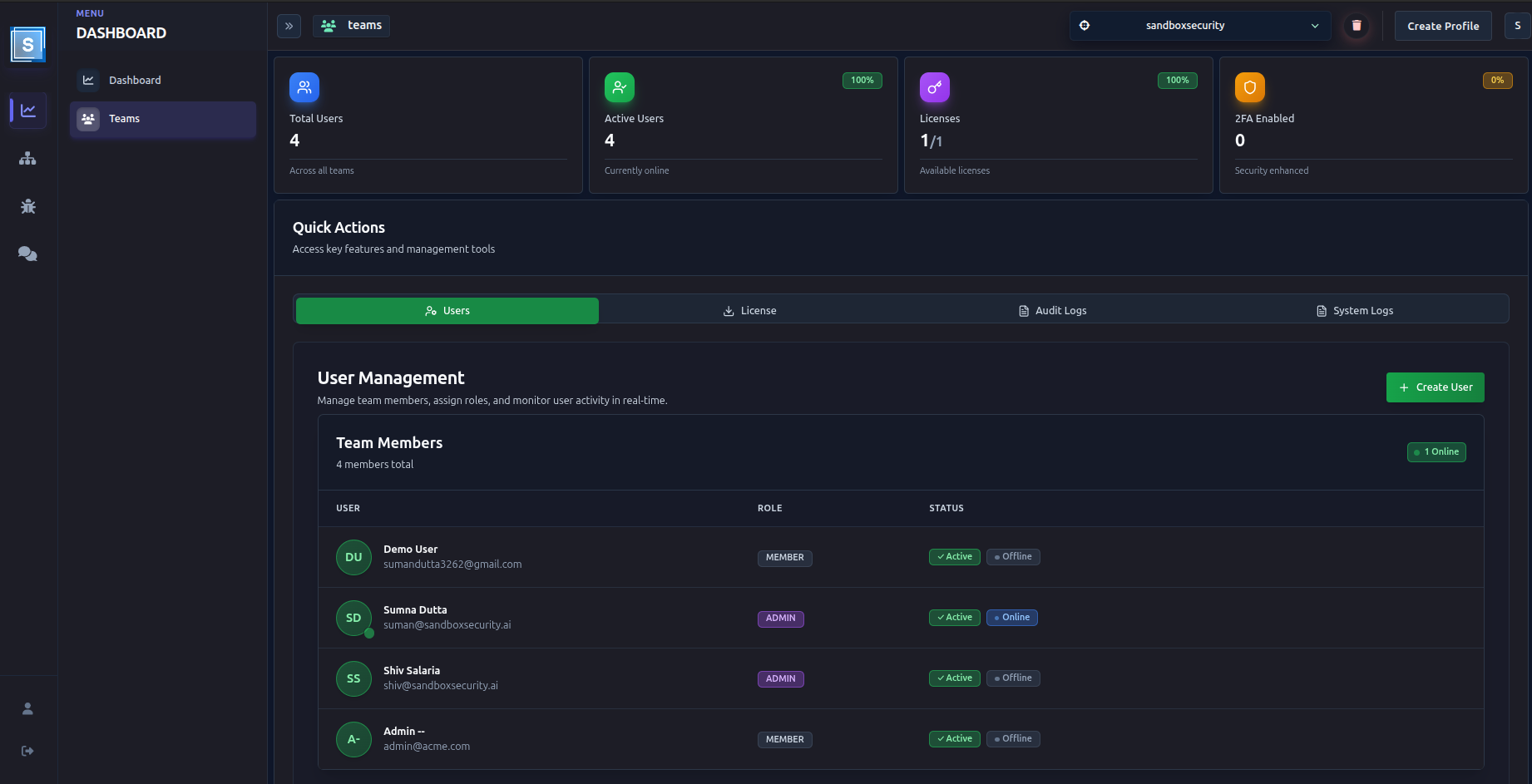
Inviting a New Team Member
New users cannot self-register — accounts are created by admins:
- Go to Team → Users
- Click Add User
- Fill in:
- Name — the user's display name
- Email — their work email address
- Role — Member or Admin
- Click Create User
The new user receives a welcome email with their login credentials and a link to verify their email address. They must verify before they can log in.
Managing Existing Users
From Admin → Users, you can:
- View all users in your organization with their role and status
- Edit a user — update their name, email, or role
- Delete a user — removes their access immediately
Deleting a user is permanent. Their account is removed and they lose all access. Engagement data they created (findings, profiles, etc.) remains in the system.
License Seats
SATLAS uses seat-based licensing — your license determines the maximum number of active users your organization can have.
- You can see your current seat usage in Admin → License
- If you're at your seat limit, you must deactivate or delete an existing user before adding a new one
- Contact Sandbox Security to increase your seat count
Audit Logs
Every action performed by users — logins, password changes, 2FA events, failed attempts — is recorded in the Audit Log.
To view audit logs:
- Go to Admin → Audit Logs
- Browse or filter events by user, action type, date, or IP address
Audit logs are immutable — they cannot be edited or deleted. They are retained for a minimum of 90 days.
Useful for:
- Investigating suspicious login attempts
- Verifying who accessed the platform during a specific time window
- Compliance reporting
Organization Statistics
Admins can view a high-level overview of platform activity from Admin → Statistics, including:
- Total users and active sessions
- Recent authentication events
- Seat usage
Next Steps
- Roles & Permissions → — understand what each role can do
- Team Chat → — communicate with your team inside SATLAS